
Global and Group Permissions
Global Permissions
* These additional permission categories have been created to allow more flexibility in the setup of users on the system. Take note these permissions will all be marked as ‘false’ when any new users are created. The user administrator will have to set permissions on these categories as ‘true’ if required.
Global Permissions
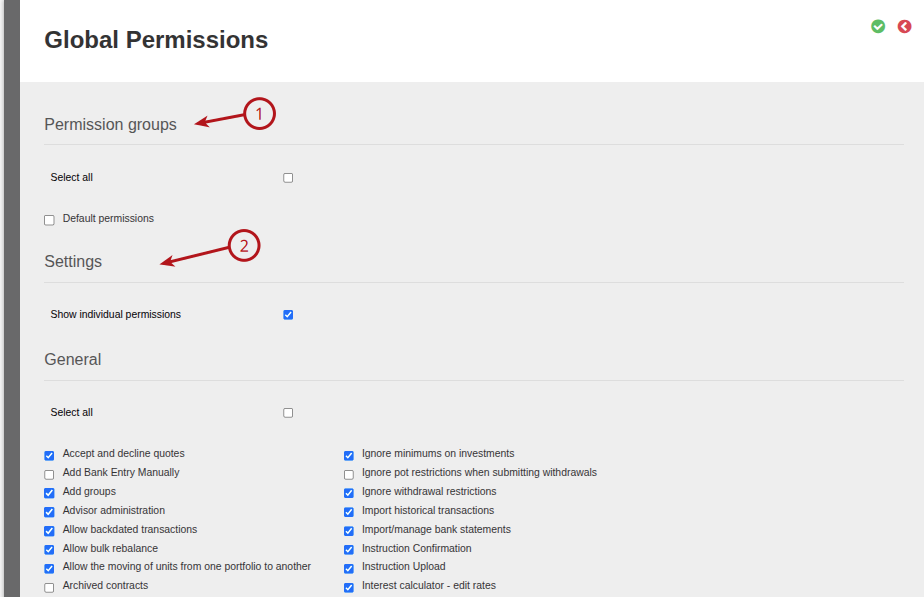
Permission groups
All individual permissions can be selected or deselected in bulk in the ‘Permission groups’ section. If a permission group is selected (1), all individual user permissions within the corresponding group on the screen will be indicated as selected (if ‘show individual permissions’ checkbox is selected) and individual permission within the group cannot be toggled on/off. If a permission group is deselected, and the ‘show individual permissions’ checkbox (2) is selected, individual permissions can be selected or deselected within the corresponding section on the page.
- Advisor Card. Implies all in “Advisor Card”
- Brokerage Card. Implies all in “Brokerage Card”
- Cash Flows Card. Implies all in “Cash Flows Card”
- Clients Card. Implies all in “Clients Card”
- Company Card. Implies all in “Company Card”
- Instruction admin. Implies all in “Instructions Main Menu” and “Instructions”
- Instrument admin. Implies all in “Instruments Main Menu” and “Instruments”
- Person Card. Implies all in “Person Card”
Settings
- Show individual permissions
The ‘Show individual permissions’ checkbox allows the individual permissions within a permission group section to reflect on the screen. Deselecting the checkbox will collapse the sections so that the detailed individual permissions are not displayed within each permission group’s section.
Also see User Permission Groups for Global Permissions
General
- Accept and decline quotes: Give access to the ‘Accept Quote’ and ‘Decline Quote’ buttons on the Account Details Card
- Add Bank Entry Manually: Can use ‘Add Entry’ button on Supplier instrument Account to add a bank entry
- Add groups: shows Add button on the employer screen
- Adviser administration: Shows Adviser main menu
- Allow backdated transactions: Activate transaction date – fees are taken from the available balance on the transaction date
- Allow bulk rebalance: Activates Investors -> Bulk Rebalance menu
- Allow the moving of units from one portfolio to another: Activates adjustment button under the transaction details of an instrument on an investor account.
- Archived contracts: Can archive contracts and view archived contracts
- Archived documents: Can archive documents and can view archived documents
- Archived employers: Can archive employers and can view archived employers and archived employer investor accounts
- Banking: Activates main Banking menu, match/unmatch investment deposit, follow payment from withdrawal, set verified on bank account, recurring Withdrawals menu item, payment batches menu item, payment History menu item, cash recon, cancel money transfer, Surrender Withdrawals menu item
- Bulk policy documents: Can generate bulk policy documents
- Bulk statements: Can generate bulk statements
- Business development manager administration: activates the Advisers -> BDM list menu
- Buy and Sell Cash: allows user to buy and sell ‘cash in currency’
- Can authorise instruction that is pending authorisation: user can authorise withdrawals that is above the ‘Withdrawal amount that requires secondary authorisation’ as set on the System->Configuration screen
- Can Authorise Own Changes: user can authorise their own changes
- Can authorise own instruction: user can authorise instruction he submitted
- Can override compliance: user can override an account or entity to be compliant
- Can transact on service provider and nominee portfolio: activates “Add instruction” button and option to submit instruction on the Administrator/FSP’s investment accounts on the system.
- Cancel distributions: Allow cancelling of cash distributions where units have not been reinvested or paid out
- Card settings: Have access to card settings in the system and can change card settings
- Change fees on quote: Can override the administartion fee on a quote
- Change Request: Can see and approve change requests
- Choose Sections On Statement: Can access button to choose sections on a statement
- Company administration: allow access to FSP card on company, can still access FSP portfolios without this permission
- Compliance override: see http://finworks.biz/faq/what-does-the-fais-override-permission-allow/
- Compliance requirements: Can edit compliance setting on Compliance requirements
- Create default instructions: Can create default instruction group
- Create and edit reviews: can edit and create reviews
- Death claims: Allowed to switch or withdrawal once-off, but no other instructions on an inactive (deceased) account
- Debit order collections: activates Banking -> Debit Order Batches, Debit Order History menu items
- Declined Quotes: Activates menu Employers -> Declined Quotes
- Do not create change request for compliant status: If change request is ticked for compliance status, a change request event will not be created if user has this permission
- Download Transactions button for brokerage or advisor: Can access Download transactions button
- Download Bulk Overviews: Menu option on New and Existing Members card
- Edit a custodian: Can edit Custodians
- Edit available instruments on contract: Can edit available instruments on contract level
- Edit contact persons: Can edit contact persons
- Edit historical transactions: Can edit historical transactions
- Edit Everything: Within the context of other permissions, you can edit everything you already have access to. If you only have access to a subset of Investors for example, you will only be able to edit the investor accounts you already have access to.
- Edit system wide model portfolios: Activates Instruments -> Model portfolios menu
- Financial Analysis: Allow editing of Financial analysis inputs on a person
- Ignore minimums on investments: Ignores the minimums set under System -> Product -> Minimum investment amount, Minimum debit order amount
- Ignore withdrawal restrictions: If System -> Product -> Available Instruction Types -> Withdrawal -> Allow only one is set, this permission overrides the setting and allows admin to load more withdrawals.
- Import historical transactions: Activates Investors -> Import Historical Transactions menu items
- Import/manage bank statements: Activates menu Banking -> Import Bank Statements and under a bank account -> More Actions -> Import Bank Statement
- Instruction Confirmation: Activate Bulk Processes -> List & Create Confirmations (limited to some configurations)
- Instruction Upload: Activates Instructions main menu Instructions and Bulk Processes
- Interest calculator – edit rates: Activates System -> Interest Calculator -> Interest Periods/Set buttons
- Investor admin: see detailed list below.
- Match investment instructions to deposits: Match bank entry function under an instruction, Banking -> Match deposits
- May create instructions as advisor: If unticked it removes the “Add Instruction” button for advisors on the Active Instructions Card
- May edit another user’s instructions: Allow user to edit an instruction created by another user
- May edit the Regulation 28 status on a contract: Can edit status
- Override “Closed to new business”-instruments: Allow user to create an once-off investment instruction with an instrument that is closed for new business
- Override paid amount for withdrawal: Can change the amount paid on matching of a payment
- Override product interest on instruction level: Can override interest on an instruction
- Proceed cash transfer allocations before matching button: Can view and select ‘Proceed with allocation before matching’ on a Money Transfer
- Quotes: Activates Employer -> Quotes menu
- Quotes-Individual: Make Investors->Quote and Quote declined menu items visible
- Run and view the monthly market-value report: Give access to the Monthly Market Value Report on the Investor Account Owner. See link
- Risk Assessment: Risk Assessment card on entity is visible
- Run and view the valuation report: Can access Investors -> Investor accounts -> More Actions->Valuation report
- Search: Activate the global search function
- Show combined statement (Unadjusted): Allow access to view and generate combined statements on investors with one or more accounts with early surrender fees
- System configuration: Activates the System menu
- Take fees: Activates the Bulk Processes -> Fees – Annual -> Accrued fees button
- Third party withdrawal: Allow an withdrawal into a third party bank account
- Transfer money between internal bank accounts: Banking -> Activates Internal transfer menu
- Transfer money between custodians -> Can switch cash on an investor account between custodians
- User administration: Activates User menu and the user card under a person
- View a beneficiary: Can view the beneficiary card on investors
- View a Custodian: Can view Custodians
- View advisor fee rates on advisor relations facade: Can view Initial/Ongoing Fees on Adviser card linked to contract
- View cash provision details and report: Can view cash provision details on an account and cash provision report
- View Everything: Within the context of other permissions, you can view everything within a menu/function you already have access to. If you only have access to a subset of Contracts for example, you will now be able to see all contracts, but only viewing. Or if you have access to Instruments, but only instruments associated with a specific Instrument Provider, then with View Everything you can view all Instruments.
- View fee portfolios: Can view fee portfolios to which the user have access
- View Holdings (Unadjusted): Can view Holdings (Unadjusted) on investor accounts to which user have access
- View inactive advisors: Can view inactive advisors
- View model portfolio returns report: Can access Model Portfolio->More Actions->Returns report
- View private communications: Can view communications marked as private on Communication type
- View private documents: Can view documents marked as private on document type
- View reports: Activates the Reports menu
- Ignore pot restrictions when submitting withdrawals: Allows a user to bypass pot-level withdrawal validations when capturing a withdrawal on a Two Pot system product.
Investor Admin Global Permission
- Change fees on quotes
- See historical changes
- Change advisor
- Add client instruction
- Update recurring withdrawal on review
- New Illustration on employer
- Workflow task functionality
- Delete instruction
- Amend “Is cash flow event?” on Client Instruction
- Amend Instruction Purpose Type on a client instruction
- Amend “Use In Income Tax Certificates” on payment transaction
- Amend “In Income Tax Certificates” on withholdings tax transactions
- Use “Change Accruals” on a client statement to adjust accrued fees
- Reporting items on Investors -> Contracts (AEOI, OECD, SARS)
- Forex Groups button on cash instruments
- Add a fee type
- Click on “Composed Account” on a portfolio instrument
- Amend PAYE Lump sum code on Withdrawal
- Everything under Investors Main menu (including Import Contracts, Export Contracts, Import Historical Transactions)
- Remove contract owner (Contract -> Contract Owners)
- Remove client account (On a contract)
- Amend Tax Details on Entity
- Email outstanding requirements
- Change pot on a client account
- Change contact persons
- Set “Ignore component/pot splits” on a contract
- See Regulation 28 Status on a contract
- View Online Confirmation on a contract
- Sdministrative setup on a contract
- Classification on a contract
- Detail holdings button on current holdings
- Instrument accounts button on current holdings
- Add transaction fees on a dealer
- Instruction -> save button (or instruction is editable when able to edit)
- Investment “Change To Once Off”
- Investment “Change To Transfer”
- Investment Resubmit
- Investment initial fees column (quote)
- Amend “Is final withdrawal (full surrender)?”
- Amend “Take accrued fees with withdrawal?”
- Amend Instruction Group on contract instructions
- Insurance quote
- KYCmatic customer requests
- Add and Amend Product fees
- Supplier account -> instrument accounts
- Switch – Create Complete Instruction Task
- Tax office on tax details
- Tax Practitioner on tax details
- Edit Transfer on unit transfer
Instruments Main Menu
- All Instruments: Can view All instruments
- Asset Classes: Can View Asset Classes
- Benchmarks: Can view Benchmarks
- Class: Can view Class
- Classification: Can view Classification
- Collective Investment Schemes: Can view Collective investment Schemes
- Dealing Calendar: Can view Dealing Calendar
- Import Instrument Holdings: Can import Instrument Holdings
- Import Maitland Performance Fees: Can import Maitland Performance Fees
- Import Maitland Service Fees: Can import Import Maitland Service Fees
- Import Maitland units: Can Import Maitland units
- Import Morningstar Asset Allocations: Can Import Morningstar Asset Allocations
- Import Prices: Can Import Prices
- Import Silica Market Values: Can Import Silica Market Values
- Import Silica Rebates: Can Import Silica Rebates
- Import Sub Manager Fees: Import Sub Manager Fees
- Retail Type: Can view Retail Types
- Specific kinds of instruments: Can view Amortised fee instruments, Bonds, Cash Instruments, Exchange Traded Funds, Insurance Instruments, Money Market Funds, Portfolio Instruments, Shares and Unitised Instruments
- Sub Managers: Can view Sub Managers
- The main menu item itself: Activates Instrument main menu
Instruments
- Actual Asset Allocations button: Can view and edit Actual Asset Allocations on instruments
- Add or Remove From All Advisors buttons: Can add or remove instruments from Advisors
- Add or Remove From All Employers buttons: Can add or remove Instruments from Employers
- Add or Remove From All Products buttons: Can add or remove instruments from Products
- Add/edit documents – Can add and edit documents on instruments
- All Instruments – Instrument summary: Can view Instrument summary button on All Instruments -> More Actions
- All Instruments – Negative investor instruments: Can view Negative investor instruments button on All Instruments -> More Actions
- All Instruments – Performance fee report: Can view Performance fee report button on All Instruments -> More Actions
- All Instruments – Transaction Flows Report: Can view Transaction Flows Report button on All Instruments -> More Actions
- All Instruments – Unit Recon Report: Can view Unit Recon Report button on All Instruments -> More Actions
- All Instruments – Update: Can update instruments
- AUM snapshot for fee calculation button on instrument provider: Can view AUM Client List button on instrument provider
- Benchmark Compositions button: Can view benchmark composition button
- Bulk transfer out button: Can view and use bulk transfer out button on instrument under contracts
- Daily Yields button: Cab view and edit Daily Yields on Money market instruments
- Documents button: Can view Documents on Instruments
- Download Transactions button on instrument provider: Can download Transactions on Instrument Providers
- Edit a collective investment scheme: Can edit Collective Investment Schemes and add instruments
- Edit a price: Can edit prices on instruments
- Edit an instrument: Can edit instruments
- Edit an instrument provider: Can edit Instrument providers
- Extra Fields button: Applicable to some configuration
- Fee Calculation button on instrument provider: Can calculate fees on Instrument Provider
- Fees button: Can view and edit Fees on an instrument
- Import benchmarks: Can import benchmarks
- Import various kinds of instruments: Can import instruments
- Insurance costs and fees: Can view and edit Cost and Fees on the edit screen of an instruction investing in an insurance instrument
- Intended Maximum Limits button: Can view and edit intended maximum limits on instruments
- Monthly Fees button: Can view and edit monthly fees on instruments
- Navigate between linked, parent and child portfolio instruments: Can navigate between linked, parent and child portfolio instruments
- Prices button: Can view and edit prices on instruments
- Recon button: Can view and edit Recon on instruments
- Remove an instrument: Can remove an instrument
- Remove an instrument provider: Can remove an instrument provider
- Should Create Transactions in Parent Portfolio button: Can create transactions in Parent Portfolio
- Special Dealing Dates button: Applicable to some configurations
- Spreads button: Can view and edit Spreads on instruments
- Supplier Instrument Accounts button: Can view and edit Supplier instrument accounts
- Total Expense Ratios button: Can view and edit total Expense Ratios on Instrument Fees
- Update Benefit Description for all Instrument Accounts: Can access Update Benefit Description for all Instrument Accounts on insurance instruments
- View an instrument: – Can view instruments
- View an instrument provider: Can view Instrument providers
- View and override dealer: Can view and override dealers
Investors Main Menu
- Adviser fee portfolios: Access to Investor account->Adviser fee portfolios for advisers
- New Accounts: Access to Investor account->New Accounts to generate Welcome emails
- Contracts: Can view Main menu item and contracts
- Send Bulk Email: Have access to send bulk Emails
- Send Bulk SMS: Have access to send bulk SMSes
Entity Main Menu
- Change Requests
- Entities
- High Risk Parties
- Politically Exposed Parties
Instructions Main Menu
- Investments not cleared
- Waiting for clearance
- Waiting for payment
- Waiting for tax
Instructions
- Documents
- Receipt. Refer to Completed Investment Receipt
- Recurrences
- Rematch Reversed
- Requirements
- Reverse Debit Order
- Source Of Funds
- Tax fields
- Transactions
- View Details: User can click into date on an instruction and see details of instructions as read-only
Workflow Tasks Card
- Create Workflow Task. Refer to Workflow Tasks
Company Card
- Bank Details
- Change to Person
- Client Classification
- Historical Changes
- Merge
- Tax Details
Person Card
- Additional Details
- Bank Details
- Change to Company
- Client Classification
- Historical Changes
- Make User
- Merge
- Relationships
- Tax Details
Adviser Card
- Activate/Deactivate
- Available Instruments
- Available Model Portfolios
- Correspondence
- Fee Report
- Historical Changes
- Import
- Contracts
Client Card
- Import
Brokerage Card
- Available Instruments
- Available Model Portfolios
- Historical Changes
- Ongoing fees report
Cash Flows Card
- Completed instructions
API (Application Program Interface)
Permissions should only be granted to API users, any user with these permissions will not be permitted to log in via the user interface. API client Representatives requiring UI access must have individual user profiles created for them by a user with User Admin permissions.
- api/accounts
- api/advisors
- api/documents
- api/entities
- api/instructions
- api/modelmanager
- api/partners
- api/prices
Card Settings
This section will be ticked by default on all new users created. These permission are needed to limit views on a user. See link
- Detailed view of Account Details Card
- Detailed view of Account Owner Card
- Detailed view of Adviser Relation Card
- Detailed view of Asset Allocation Card
- Detailed view of Client Accounts List Card
- Detailed view of Communications Card
- Detailed view of Contact Details Card
- Detailed view of Contract Compliance Requirements Card
- Detailed view of Current Holdings Card
- Detailed view of Documents Card
- Detailed view of Instruction List Card
- Detailed view of Investment Card
- Detailed view of Life Assured Card
- Detailed view of Personal Details Card
- Detailed view of Requirements Card
- Detailed view of Returns Card
- Detailed view of Reviews Card
- Detailed view of Risk Assessment Card
- Detailed view of Workflow Tasks Card
- View Account Details Card
- View Account Owner Card
- View Adviser Relation Card
- View Asset Allocation Card
- View Client Accounts List Card
- View Communications Card
- View Contact Details Card
- View Contract Compliance Requirements Card
- View Current Holdings Card
- View Documents Card
- View Instruction List Card
- View Investment Card
- View Life Assured Card
- View Personal Details Card
- View Requirements Card
- View Returns Card
- View Reviews Card
- View Risk Assessment Card
- View Workflow Tasks Card
Group Permissions
- ALL or for a specific group (Add Group button)
- Update group details: user can edit a group’s details and see all employer fields
- Edit automatic email notification: user can edit the automatic email notification setting on a group
- Available instruments: Activate the Available instruments function on a group
- Update members: Can edit member details
- Submit contribution: Activate the Submit button on a group contribution
- Authorise contribution: Activate the Authorise button on a group contribution
- Invest contribution: Only for NON unit registry / transactional configurations and Activates the Invest button on a group contribution
- Edit Instruments: Allows a user to edit the instruments on a recurring instruction on a member
- Change advisor: Activates the change adviser button on the employer
- May view the groups: Can only view groups
- Update helper email: Can change helper email address, without ‘Update group details’ permission
NOTE:
- Permissions can be set on any user. It is not recommend to give Investors, Advisers, Product viewers and Instrument Providers any permission settings, unless you want them to see more details. Giving them permissions will give them access to information though “admin” links like “Recon” section on an instruction. Following the links could then give them access to other transactions on other accounts.
- Group Administrators should only be given Group Permissions.
- Global General, Global Instrument Main menu, Global Instruments permissions are mostly intended for internal administrators.
Last Updated on 4 weeks ago by Hayley Jerram