
Workflow Tasks
Take note of the following:
- Workflow Tasks Card
- Viewing Workflow Tasks
- Status of Workflow Tasks
- Upload Documents to a Workflow Tasks
Workflow Tasks can be added on the following levels
Workflow Tasks Card
- The Workflow Tasks Card is visible at an Entity, Client Account and Contract level
- The permission Create Workflow Task is required, refer to Global and Group Permissions
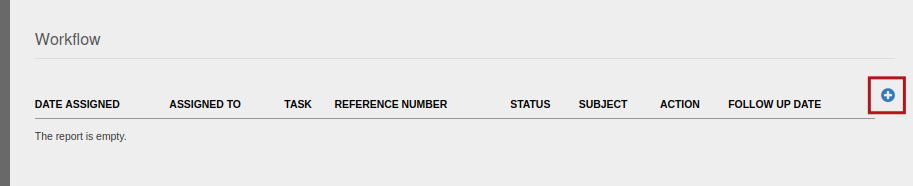
- Workflow Tasks can be created at an entity or client account level via the Workflow Tasks card (card -> more options -> create workflow task), see image A. Workflow tasks can also be created at an instruction level by using the ‘add’ button in the workflow tasks section of the instruction screen, see image B. The Workflow Tasks card is visible at a contract level, however, tasks cannot be created via the card at this level.
Image A: Workflow tasks can be created via the Workflow Tasks card on an entity or client account level

Image B: Workflow tasks can also be created on an instruction level by using the ‘add’ button in the Workflow section on the instruction screen. Workflow Tasks created on an instruction level will be visible on the Account level Workflow Tasks card.
Viewing Workflow Tasks
The user can view assigned tasks from the User main menu

The screen make provision to include Completed tasks in the view by selecting or deselecting the tick-box
Deselection of ‘Show only my tasks’ is limited to users with the Investor Admin permission and will display tasks for all users
Status of Workflow Tasks
The status of tasks on investor instructions will change to completed when the investor instruction is completed or cancelled

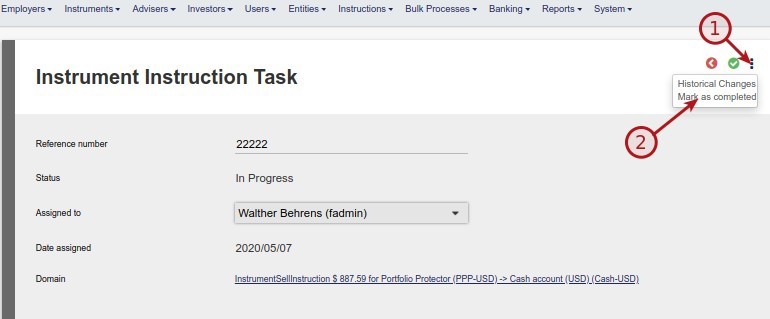
The status of a task on instrument/dealer instructions will not change when the status of the instrument instruction changes. The status of the Instrument instruction task can be changed manually on the task when the task has been completed.


Upload Documents to a Workflow Tasks
- The user has the ability to add documents to a Workflow Task
- From the Workflow Task details Card select More Actions (1) => Documents (2)
- From details on Uploading Documents refer to Upload Documents

For more information regarding Workflow Tasks also refer to:
On Investor Instructions
- Workflow tasks can be added and assigned to a user on investor instructions.
- Navigate to an instruction and from the More Actions (1) select Create Complete Instruction Task(2)

The following fields are available:
- Reference number – enter a reference number
- Status – indicate the status of the task
- Assigned to – select the user the task needs to be assigned to
- Date assigned
- Follow Up Date – enter a date to follow up on the task
- Due Date – enter a date when the task is due
- Action – add an action for the task, for more information refer to Workflow Actions

The task will now appear at the bottom of the instruction

On Instrument/Dealer Instructions
- Workflow tasks can be added and assigned to a user on Instrument/Dealer instructions.
- Navigate to the bottom of a Contract Note on a Instrument/Dealer Instruction

The following fields are available:
- Reference number – enter a reference number
- Status – indicate the status of the task
- Assigned to – select the user the task needs to be assigned to
- Date assigned
- Follow Up Date – enter a date to follow up on the task
- Due Date – enter a date when the task is due
- Action – add an action for the task, for more information refer to Workflow Actions

The task will now appear at the bottom of the instrument instruction Contract note

On Entity
- Workflow tasks can be added and assigned to a user on an Entity level.
- Navigate to an Entity and from the Workflow Tasks Card select (1)More Actions -> (2)Create Workflow Task
The following fields are available:
- Reference number (Optional) – enter a reference number
- Status – indicate the status of the task
- Assigned to – select the user the task needs to be assigned to
- Date assigned
- Follow Up Date – enter a date to follow up on the task
- Due Date – enter a date when the task is due
- Action – add an action for the task, for more information refer to Workflow Actions

- The task will now appear at the Workflow Tasks Card
- For more details select the View Details from the Workflow Tasks Card

Last Updated on 1 year ago by Hayley Jerram