
Upload Documents
- To be able to upload Documents, Document Types need to be set up first. Refer to Document type
- Upload a Document
- Also refer to the following:
Document type
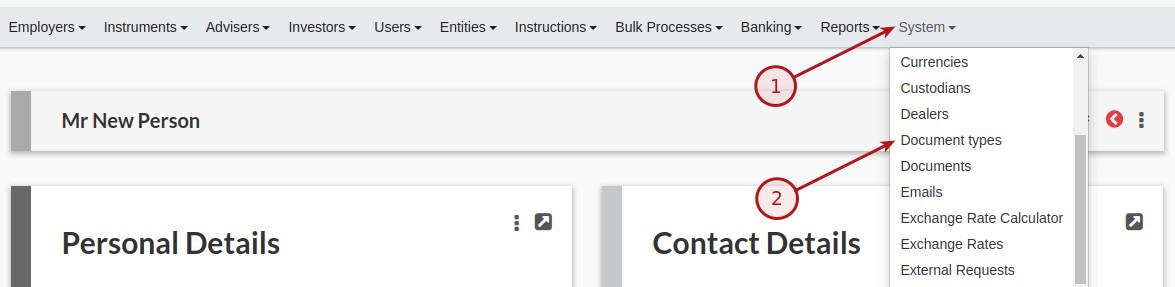
Document Types are accessible from System (1) => Document types (2).
The option is available to Add (1), Edit (2) or Delete (3) Document types. NOTE: If a Document Type is used you will not be able to delete the specific Document Type

To add a Document Type select the Add (1) button

The following fields are available:
Type : Input the type of Document, e.g. ID Proof, Application Form
Default Label : Text as displayed on the system, e.g. Drop-down list
Class : The class will only be available on the appropriate level. For example if the class has been set as Entity e.g. Proof of ID, this type will not be available on Account level. The following options are available:
- DealerInstruction
- Distribution
- Entity
- InvestorAccount
- Instruction
- InstrumentInstruction
- InvestmentInstrument
- Product
- RiskAssessment
- System
Has expiry date: Does this document have a expiry date.
Note: If this is enabled, the expiry date for documents will default to the date of upload + the number of years specified under Sysem -> configuration -> ‘Default compliance validity period in years’ (for example, if the date of upload is 2025/05/25 and ‘Default compliance validity period in years’ is set to 5, the default expiry date will be set to 2030/05/25)
Private: If set only users with the “View private documents” permission will be able to view these documents
Accessible to outside systems: If set the documents will be accessible from outside the system e.g. an email signature logo
Hover text: Text that will be shown when mouse hover over field
Upload a Document
Document can be added the varius levels on the system refer to the Class above. The process remains the same and as example Entity level will be used:
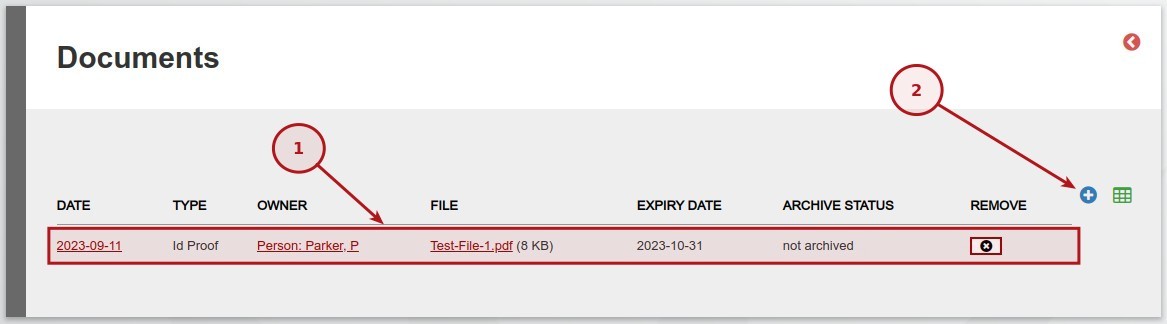
Navigate to an Entity and from the Documents Card select View Details

Existing documents will be listed (1)
To add a new document select the Add (2) button
The following fields are available:
- Owner: The entity to which the document is assigned to
- Date*: Date of the document, the system will default to today’s date
- Type*: As set per the Document Type above
- Use default label: The user have the ability to change the Lable of the document, if not set the default label will be used.
- Label: The default lable will be shown, if “Use default label” is set as above the user will be able to change the label
- This document never expires: Set if the document never exprires
- Expiry Date: Set the expiry date for the document
- Document*: Click the Browse button and select the file from your local machine. After the file has been selected select the upload button to upload the file to the system
- Has original: The user has to option to specify if they do have the Original document or only a Copy
- Archive status: The user has to option to set a document as archived, only users with the “Archived documents” permission will have access to archived documents
Last Updated on 1 month ago by Hayley Jerram