
Wizard Risk Assessment
If the Risk assessment method ‘Wizard Risk Assessment Method’ has been selected under System-> Configuration, the wizard risk assessment will be available on the risk assessment card on entities (Persons and companies). Also see KYC Risk Assessment
Set up Risk Assessment Types
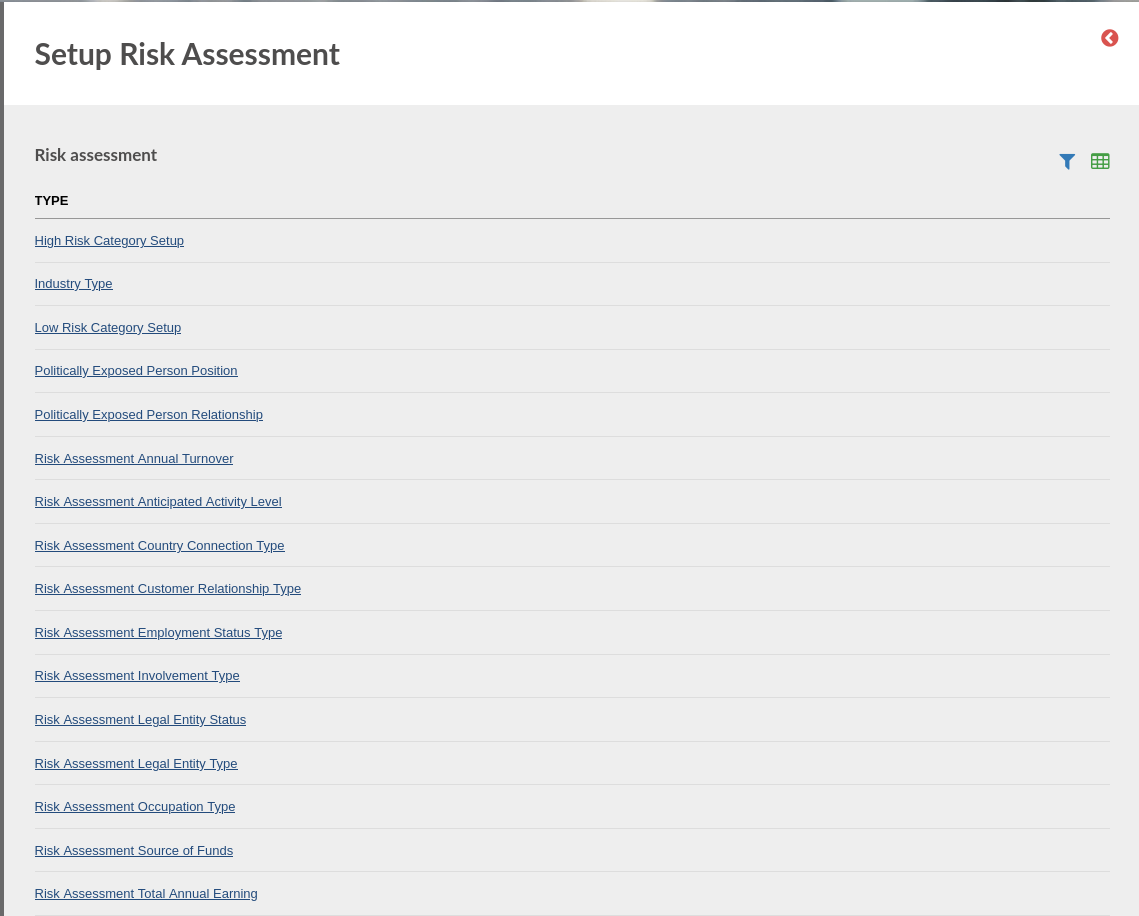
The Risk Assessment is configurable on system level, navigate to “System” -> “Risk Assessment Setup”. The Setup Risk Assessment screen lists the Risk Assessment types available for configuration, click into the Risk assessment type to edit or view its configuration:
- Politically Exposed Person Position
- Politically Exposed Person Relationship
- Risk Assessment Legal Entity Type
- Risk Assessment Legal Entity Status
- Risk Assessment Customer Relationship Type
- Risk Assessment Total Annual Earning
- Risk Assessment Country Connection Type
- Risk Assessment Employment Status Type
- Risk Assessment Anticipated Activity Level
- Risk Assessment Annual Turnover
- Risk Assessment Involvement Type
- Risk Assessment Occupation Type
- Risk Assessment Source of Funds\
- Industry Type
- Risk Score Duration Relationship
- Risk Score Client Top Up Frequency
- Risk Score Client Relationship
- Risk Score Client Payment Mode
- Risk Score Client Occupation Details
- Risk Score Bank Account For Withdrawal
- Risk score questions
- High risk category questions
- Low risk category questions
- Risk Rating Table
- Nationality Fields For High Risk Country
Complete the Risk Assessment on an Entity
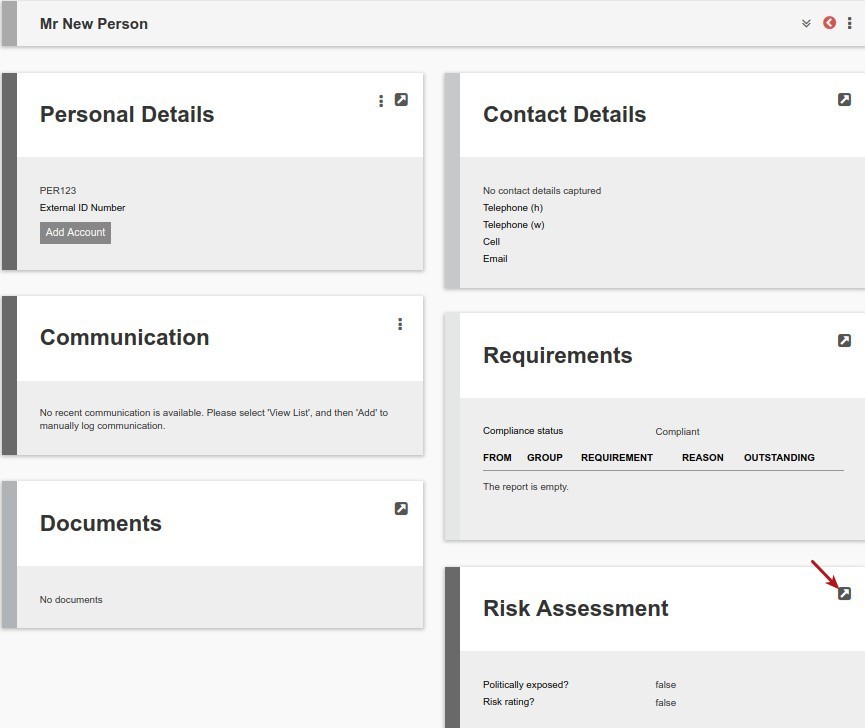
After configuring what can be seen in the wizard in the steps above, navigate to the Risk Assessment Card on a person or company.
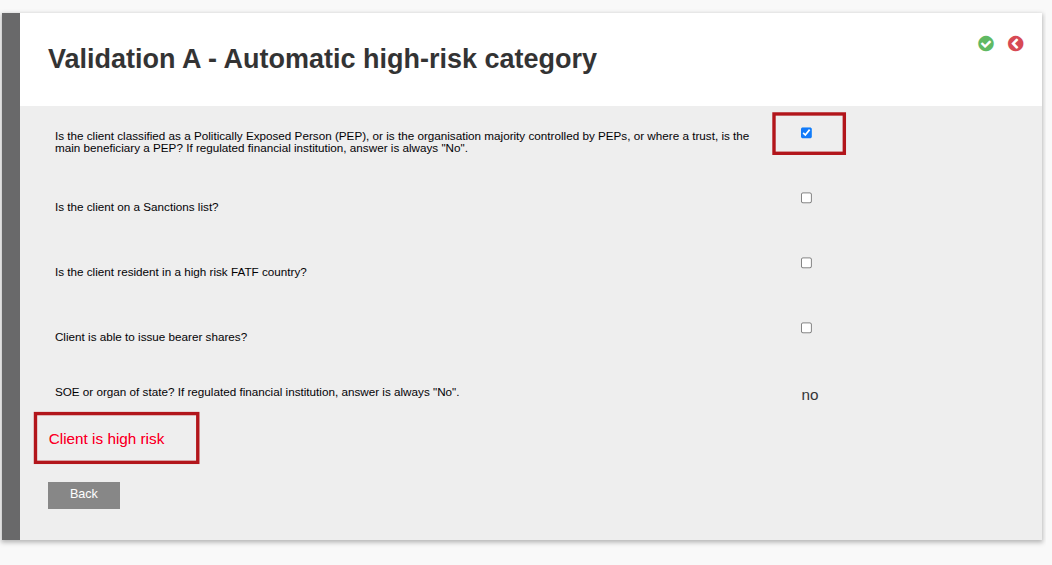
Validation A
If one or more of the questions are ticked as ‘YES’, the client is deemed as high risk and the validation does not proceed
Note: The wizard risk calculation has been been set to default to “No” on question: SOE or Organ of State? If regulated financial institution, answer is always “No”.
This question is applicable where a Company Type is set as a State Owned Enterprise or a Regulated Financial Institution see Company Types
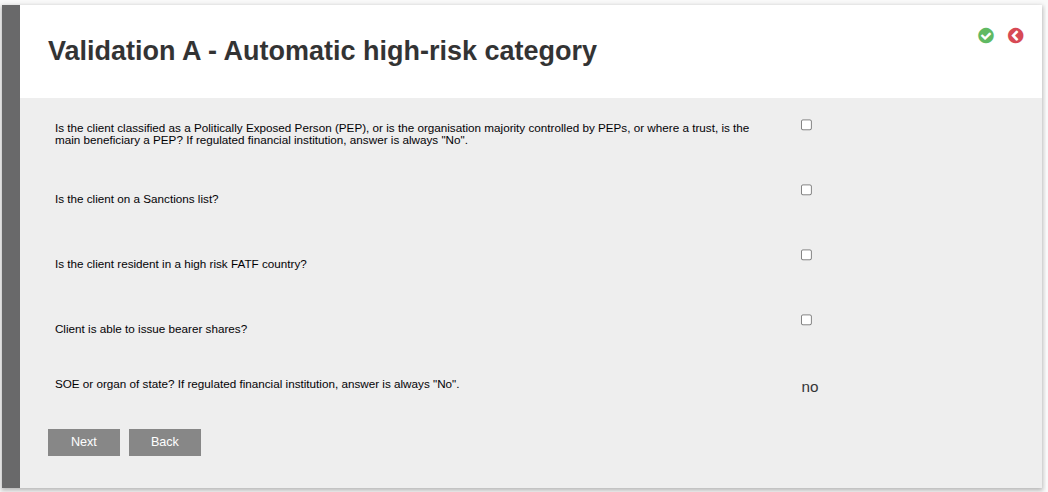
If no questions are ticked as ‘YES’, the validation proceeds to Validation B
Validation B
If one or more of the questions are ticked as ‘YES’, the client is deemed as low risk and the validation does not proceed
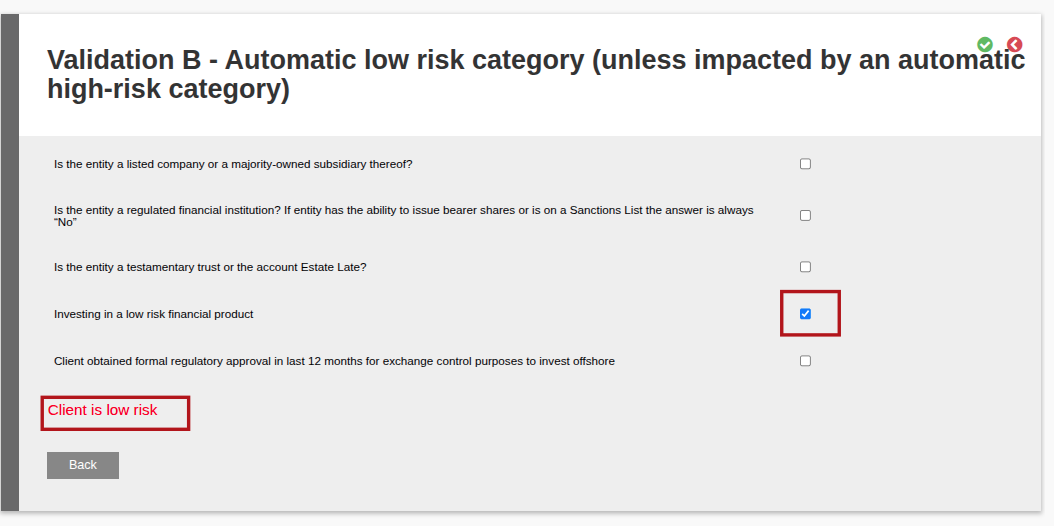
If no questions are ticked as ‘YES’, the validation proceeds to Validation C
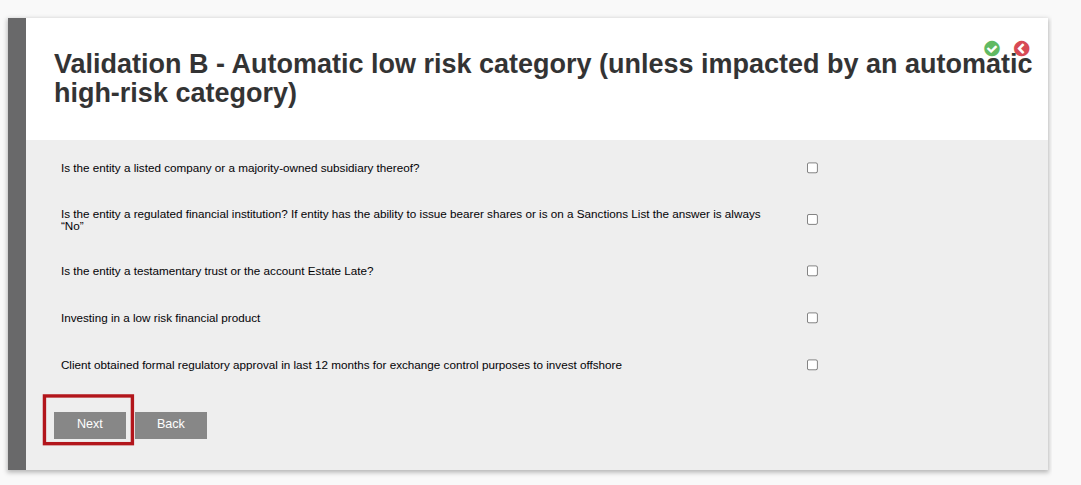
Validation C – Risk Score
Validation C provide drop-down choice lists on the grounds of which a risk score is generated and which determines the client’s risk score
(High risk client if >= 8, Low risk client if < 8)
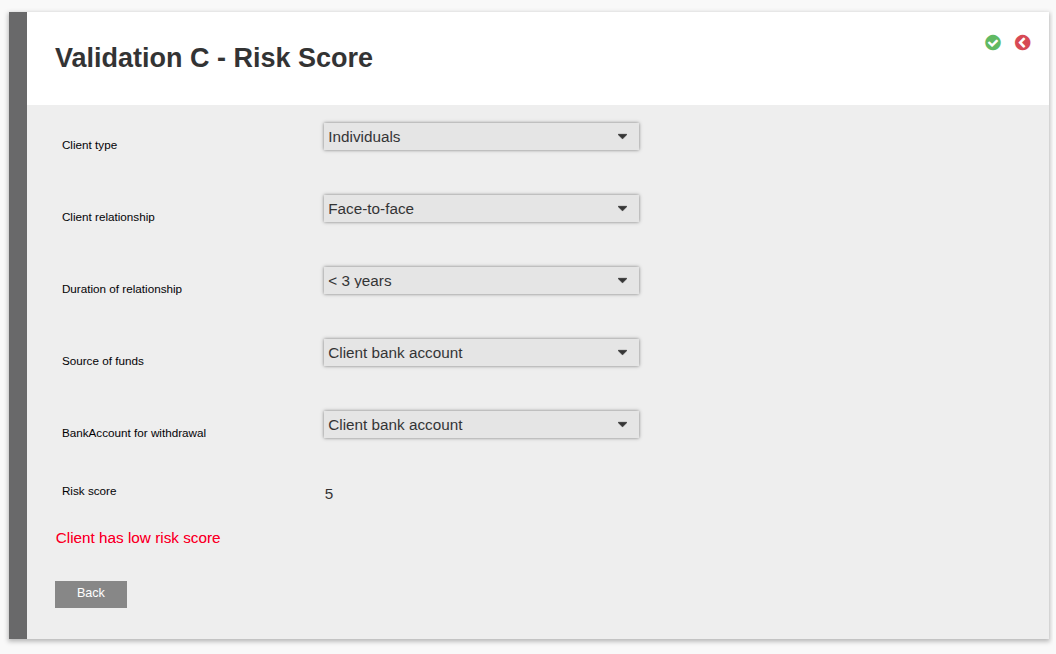
See WizardRiskAssessment for implementation and scoring (scoring sheet)
NOTES ON CHANGE OVER TO WIZARD RISK ASSESSMENT
Current risk ratings on the default risk assessment method will be retained.

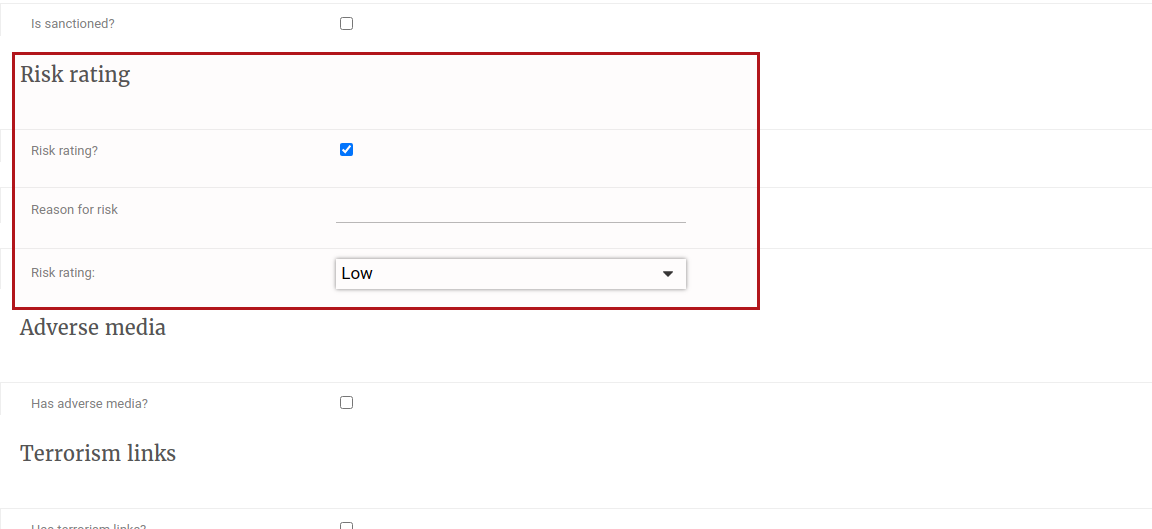
To change the risk rating on an entity from the Default risk assessment to the Wizard risk assessment, first clear/remove the risk rating on the entity before using the wizard to calculate the risk rating.
Last Updated on 4 months ago by Hayley Jerram