
Sending transaction notifications
- Notification can be sent to the Client and/or Adviser, the options/preferences need to be set on the Investor Contract, Entity and on the Adviser
- Should Change Request notifications also be required the Change Request options also need to be set, refer to: Change Request
Investor Contract
The first step is to set to whom the correspondence need to be sent to
- Navigate to: Contract Details Card -> View Details -> Communication and Process Section
- Set “Send correspondence to” the option is available to send correspondence to the “Client” and or “Adviser” or both

NOTE: Approved Change Request (if selected) are sent irrespective of status of “Send correspondence to”
Entity and Adviser
- The next step is to set which preferences and what medium to be used (Email and/or SMS) for the notification
- The options for the Entity and Adviser are the same, only the heading/label differs
- Entity Label: “Transaction notification preferences:”
- Adviser Label: “Client transaction notification preferences:”
The system sends notifications on the following events:
- Submit Investment Instruction
- Submit Withdrawal Instruction
- Submit Switch Instruction
- Submit Unit Transfer in Instruction
- Submit Unit Transfer out Instruction
- Submit Reinvestment Switch Instruction
- Complete Investment Instruction
- Complete Withdrawal Instruction
- Complete Switch Instruction
- Complete Unit Transfer In Instruction
- Complete Unit Transfer Out Instruction
- Complete Reinvestment Switch Instruction
- Completed Investment for New Client – for first Investment or Transfer In
- Approved Change Request – on approval of change request (also see Change Request)
- Approved Activation of Bank Account – on approval of change bank account (also see Change Request)
- Successful Login – on successful logging into the Finworks system
Notifications are send via email and/or SMS. The templates for the notifications can be customised under the System settings:

The system will send notifications depending on the setup of the Investor and Adviser.
Both Investor and Adviser have default settings for transaction notifications under their contact details. “Transaction notification preference” can be Email, SMS, Email and SMS, None.

Each Investor contract then has a setting to determine how notifications are send under the contract settings. “Send correspondence to” can be Client, Adviser, Client and Adviser, None.
Both the Investor/Adviser and Investor contract should be set to send SMS or Email. So if you tick on the Investor contract “Send correspondence to: ADVISER”, but on the adviser’s contact details the “Transaction notification preference:” is not ticked, nothing will be send. If you tick on the Investor contract “Send correspondence to: CLIENT” but on the Investor’s contact details “Transaction notification preference:” is not ticked, nothing will be send.
If on the Investor’s contact details “Transaction notification preference:” is ticked, but on the Investor contract “Send correspondence to:” is not ticked then nothing will be send, etc.
Where the Investor is a Company and the CLIENT is set to receive notifications, the notifications will be send to the Company’s’ own contact details and not the contact details of the Company Contact Person.
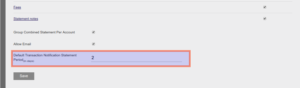
The default transaction notification statement period can be set under Statement defaults. The statement attached to a transaction notification email can thus be limited to a period of a few days to only display the details of the last transaction.

See how to test emails/sms from the test site and editing notification messages
Last Updated on 2 years ago by Beryl Braak